 Rasel Mail
Aliases: create, disable and remove
Receive mail at several addresses in one mailbox.
Editorial update: October 30, 2026In this guide
Another address, the same mailbox
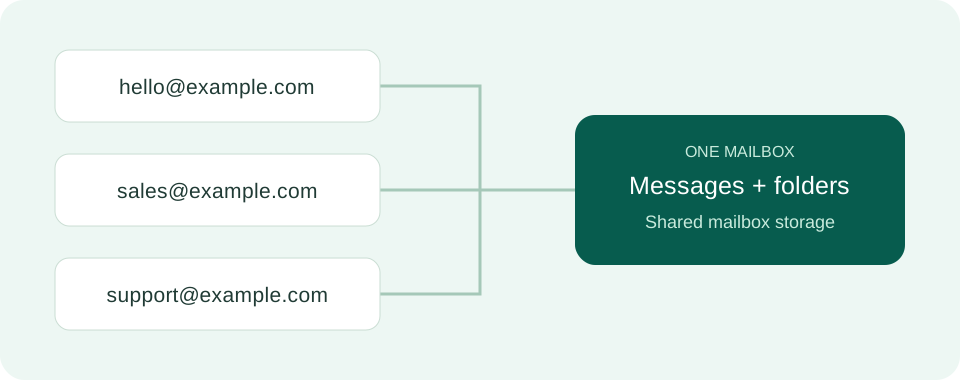
For example, hello@example.com is a mailbox with sales@example.com and support@example.com as aliases. All arrive in the same mailbox and folders; each alias does not receive separate storage or a password. Create a mailbox when you need independent mail.
Create an alias
- Open the mailbox that should receive the mail.
- Open mailbox actions from the profile menu and choose Create alias if your permissions allow it.
- Choose an available name and confirm the full address and target mailbox before saving.
- Check the alias in mailbox details and test its destination using a non-sensitive message.
Disabling and removing
Disabling changes whether the address receives mail; read the confirmation before proceeding. Removing an alias is not a mailbox merge and does not move your messages elsewhere. Before removing an address used for important accounts, update those accounts.