 Rasel Mail
Walkthrough: email confirmations for your store
Create a project, send one order event, and test status and retries.
Editorial update: October 30, 2026In this guide
Before integration
- A paid plan and custom domain ready for sending, not just verified ownership.
- Confirmed account sending quota; a payment request alone does not activate it.
- An application server that stores the key and business-event identity.
1. Create the store project
- Open Applications → Website email and review quota and expiry.
- Enter the store name and select its sending domain, then create a project key.
- Copy the once-visible key into server secrets, not HTML or browser JavaScript.
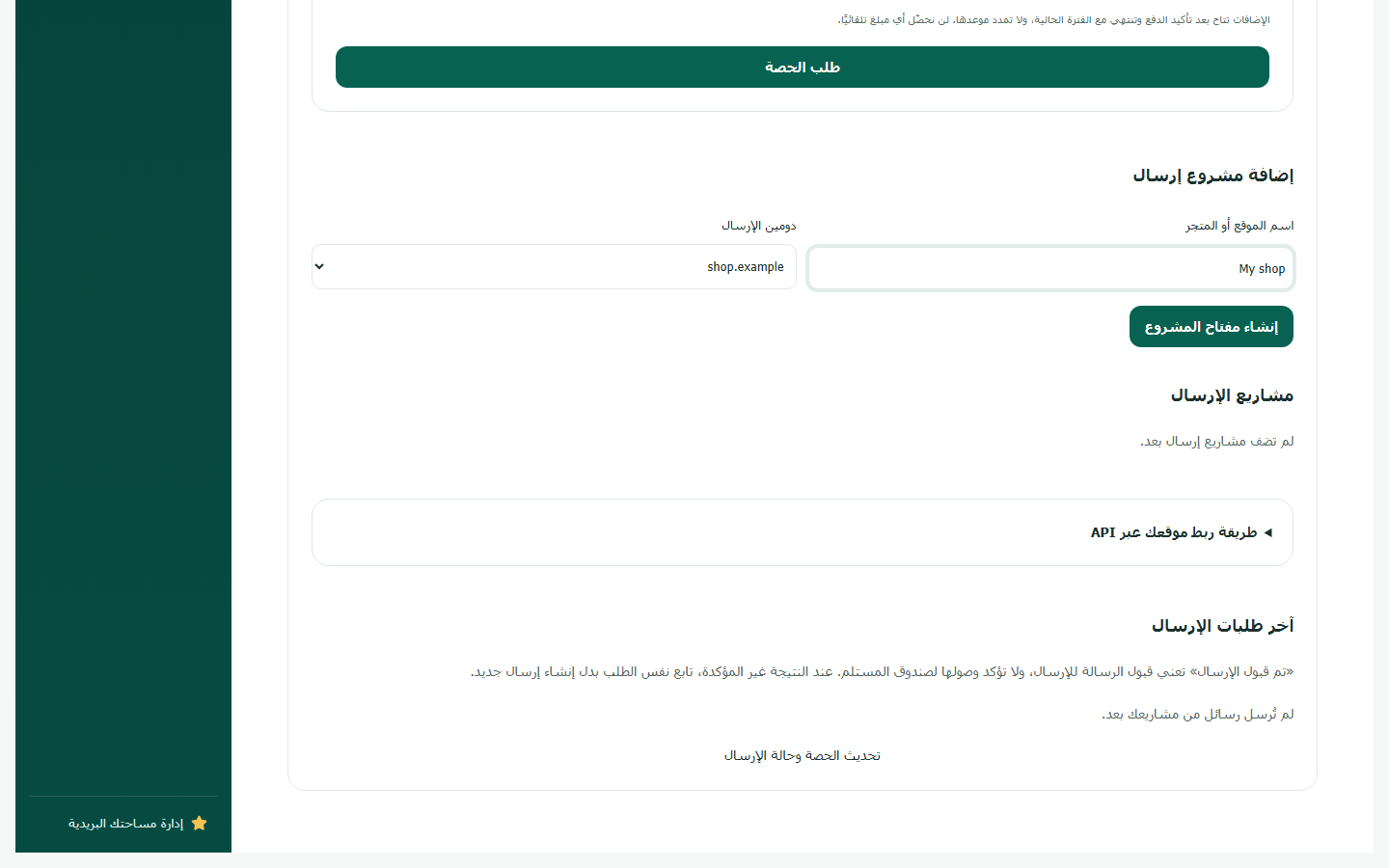
- Check the project’s sending domain.
- Use a recognizable store name.
- Create the key and store it server-side.
2. Tie sending to one business event
For confirmed order 123, persist a key such as order-123-confirmation in your application database. Retries retain the same event key and contents. A later shipping notification is another event with another key. Do not generate a fresh random key on every call.
Test message; replace addresses
{"from":"orders@example.com","to":["customer@example.net"],"subject":"Order 123 confirmed","text":"We received order 123."}3. Test after submitting
- Start with the downloadable example and a test recipient you control.
- Store the message ID and read its status. queued is waiting; accepted is provider acknowledgement, not Inbox confirmation.
- Repeat the same event and body to confirm the same ID returns without another reservation.
- Test quota errors, 429 and unknown outcomes before connecting customer orders.