 Rasel Mail
Walkthrough: a sales mailbox, aliases and team
An independent mailbox with aliases and per-member permissions.
Editorial update: October 30, 2026In this guide
Choose the structure first
Create sales@example.com as a mailbox when sales needs independent messages, folders and storage. If support@example.com is another address for the same team, make it an alias of that mailbox. Each address does not need its own sign-in identity.
1. Create the mailbox
- Check mailbox/storage entitlement and the ready domain.
- Open Create mailbox and select the domain, sales local name and a suitable password, then save.
- Wait for the final state and open mailbox details.
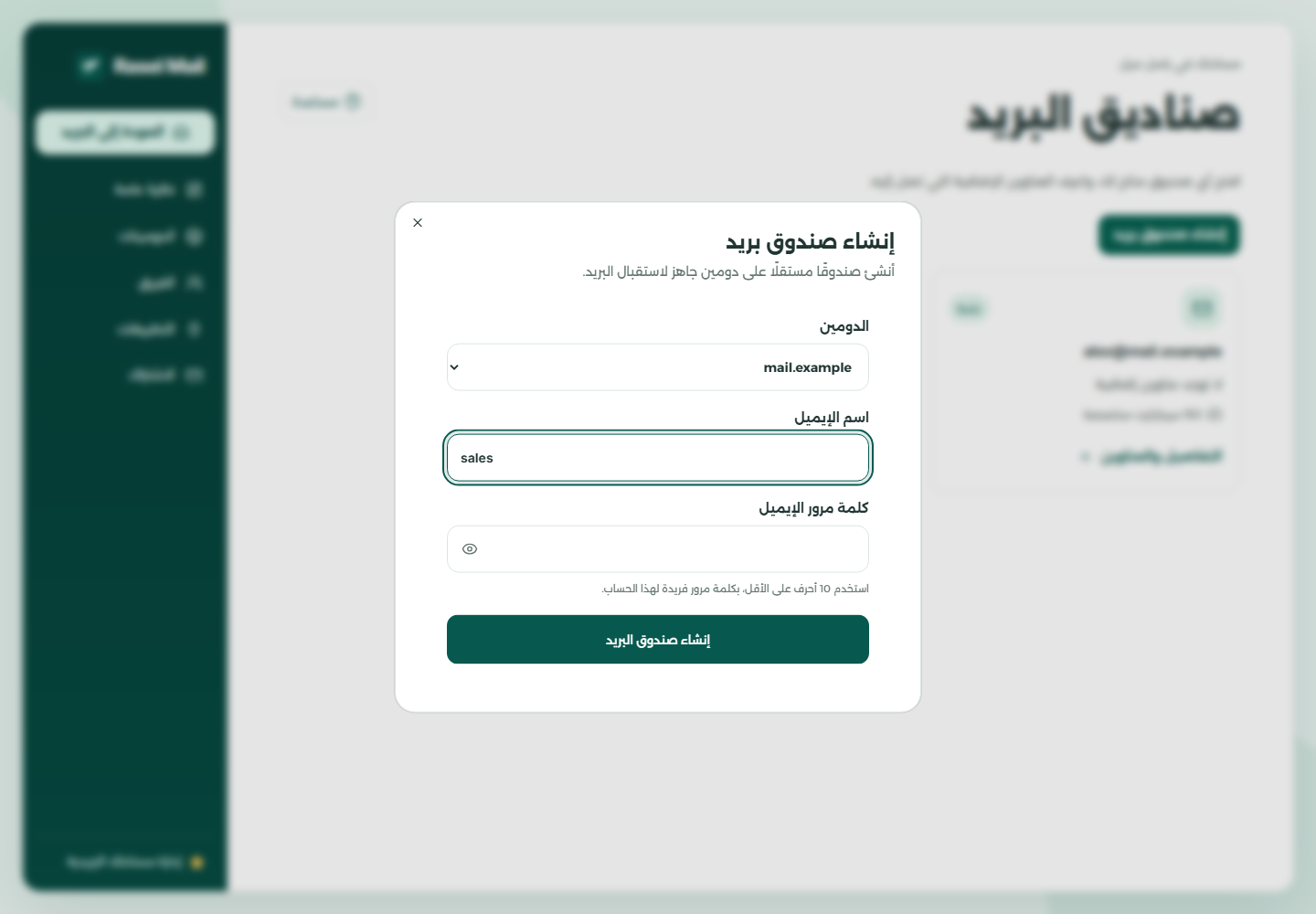
- Confirm the target domain.
- Enter only the part before @.
- Mailbox credentials are separate from team sharing.
2. Add another address for the team
- Open the sales mailbox before creating the alias.
- From mailbox actions create support if available.
- Send a test to each address and confirm both arrive in the same mailbox.
3. Share using teammate accounts
- Use each teammate’s own Rasel Mail account, then open Team as the owner.
- Select sales, enter the teammate’s account email and choose read/send or message-management access.
- Explicitly set alias creation and Trash permissions. Start with the least access needed.
- Have the teammate open the mailbox and test allowed actions. Do not send them the owner’s password.
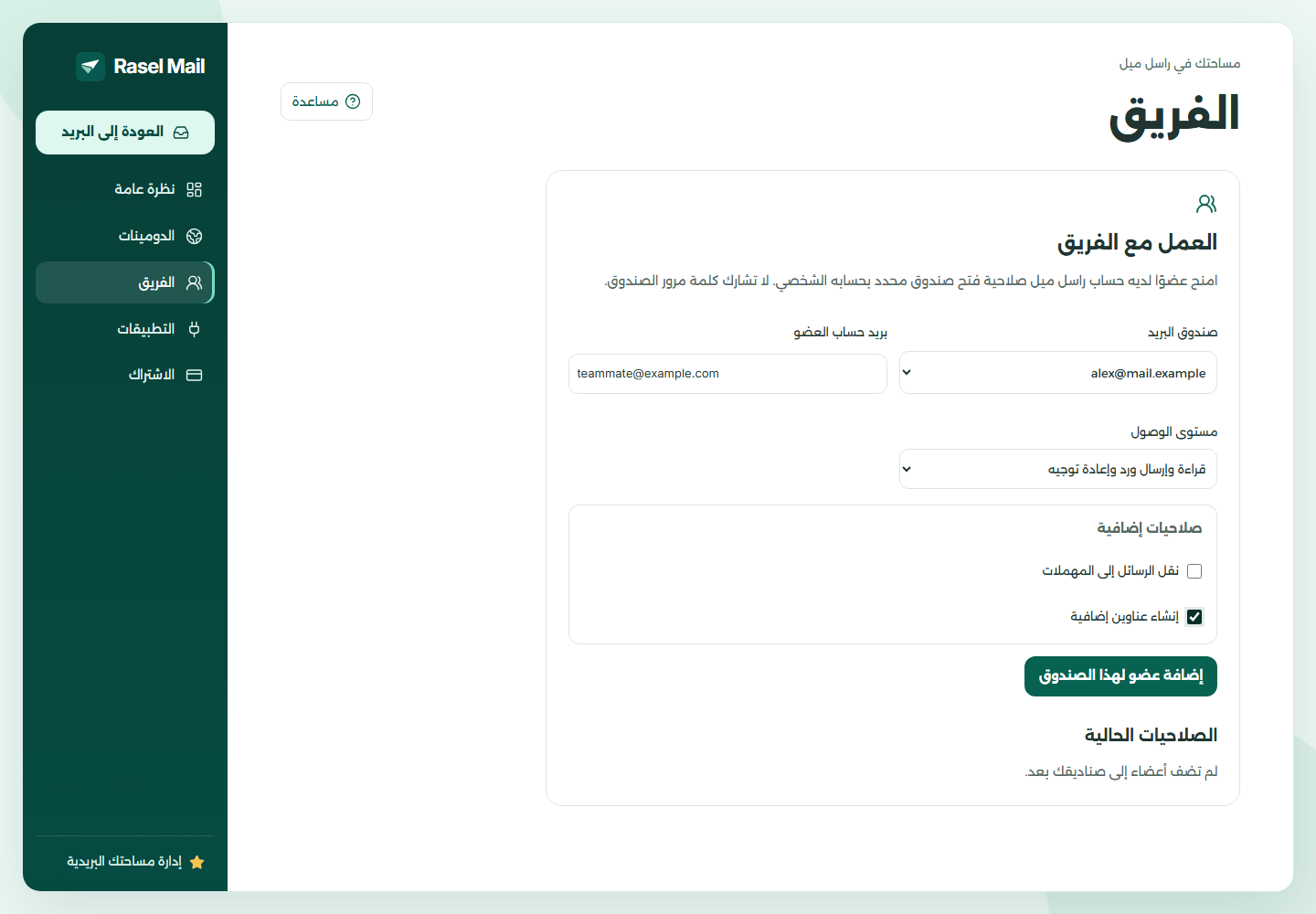
- Choose the target mailbox.
- Choose an access level.
- Trash and alias creation are independent permissions.
4. Review periodically
Review allocations in Subscription and revoke access no longer needed in Team. The storage meter measures allocations rather than message size. Revoking a teammate does not delete mailbox messages.